
Part 1
Set up passwordless sign-in
Install Microsoft Authenticator
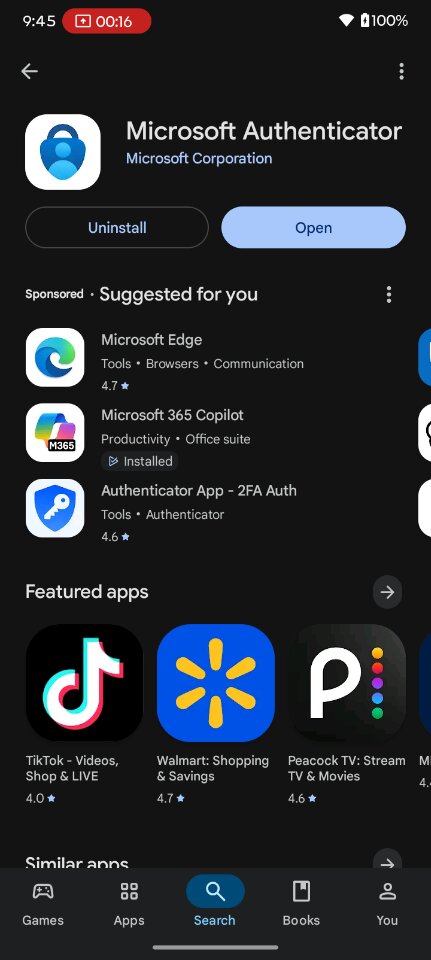
On your smartphone, open the App Store (iPhone) or Google Play (Android), search for Microsoft Authenticator, and install it. It's free and published by Microsoft Corporation. When the install finishes, tap Open.
Add your work account
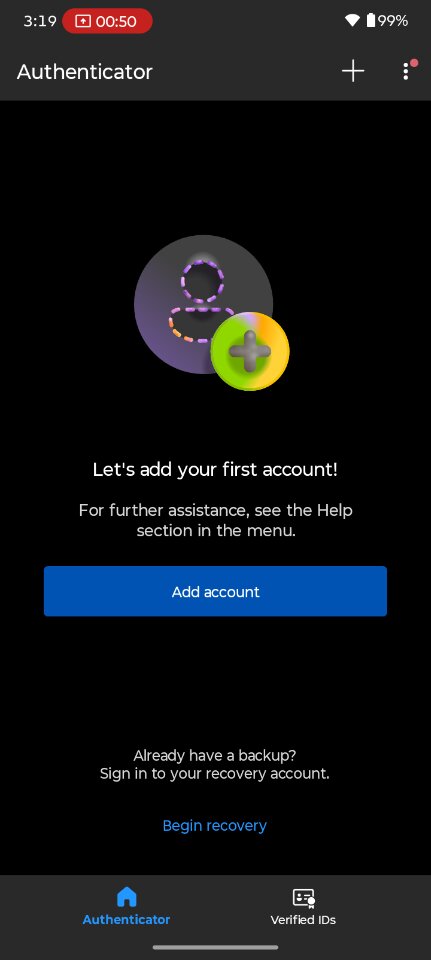
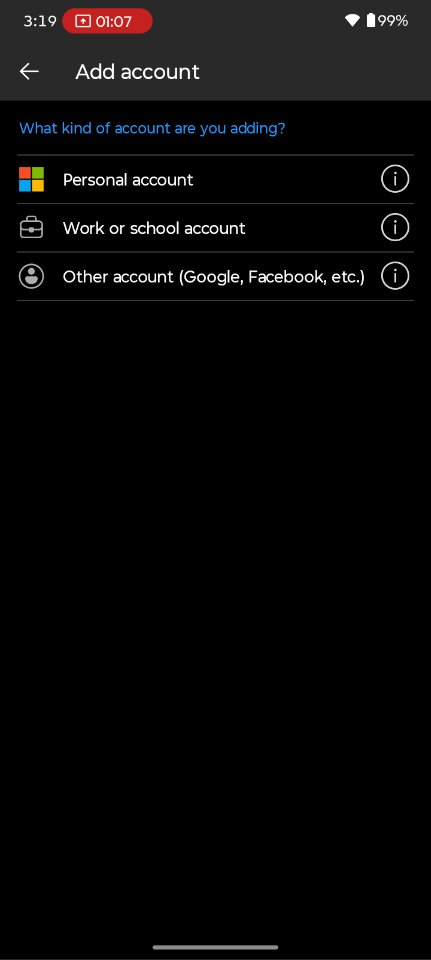
Open the Authenticator app and tap Add account (or the + button in the top corner). When asked what kind of account you're adding, choose Work or school account.
Sign in with your Temporary Access Pass
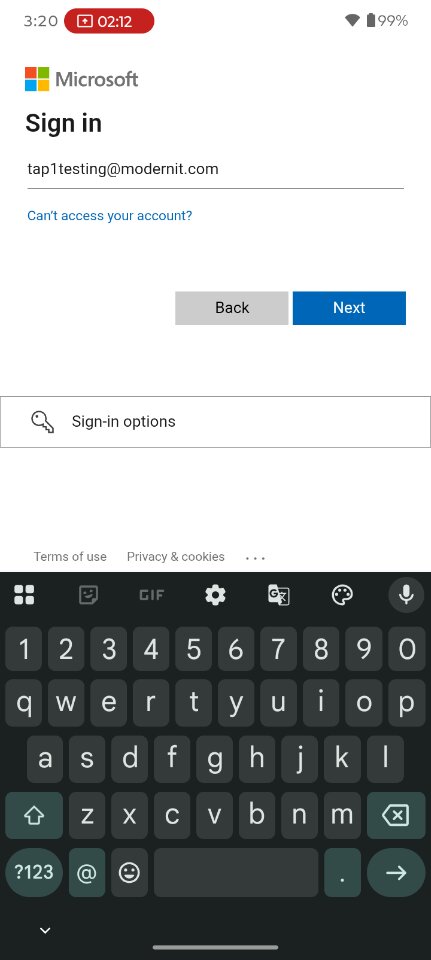
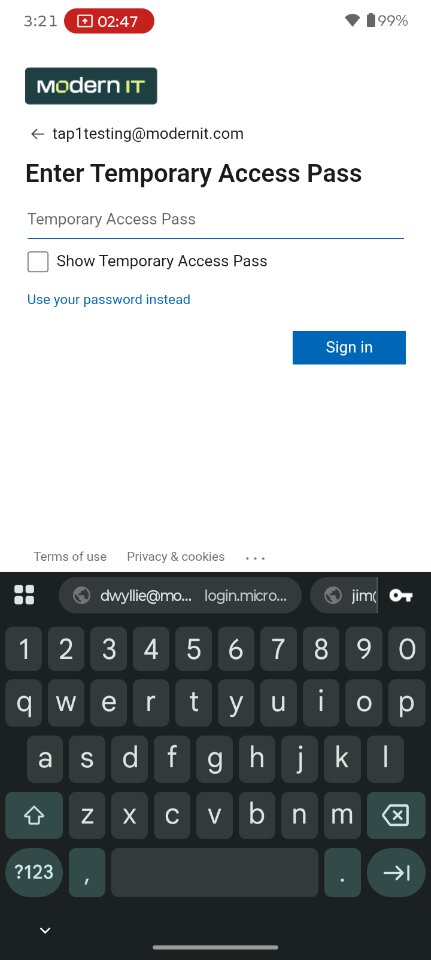
Type your BestPack email address and tap Next. Instead of a password screen, you'll see Enter Temporary Access Pass. Type the TAP exactly as IT provided it (check "Show Temporary Access Pass" to see what you're typing), then tap Sign in.
About your TAP
IT sends your TAP to your mobile number by SMS text message just before you begin. The Temporary Access Pass only works for a limited time and, in most cases, only once. If it has expired or doesn't work, contact tech support and we'll issue a new one — it only takes a moment.
Secure your account
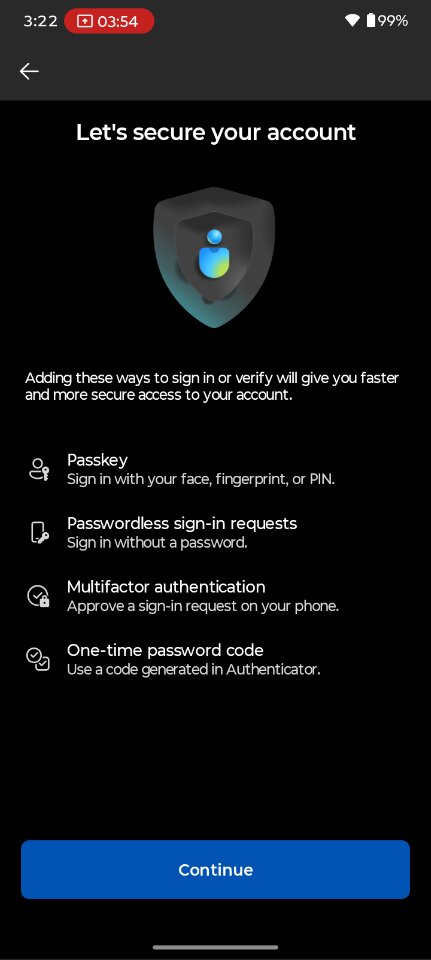
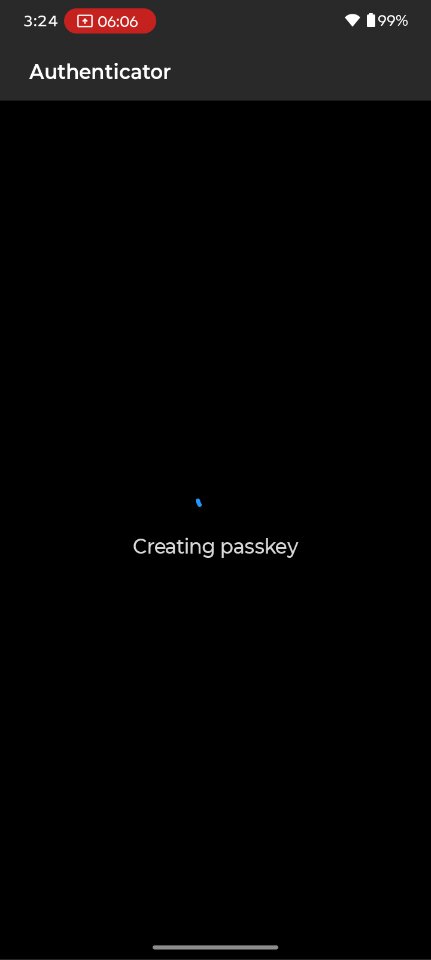
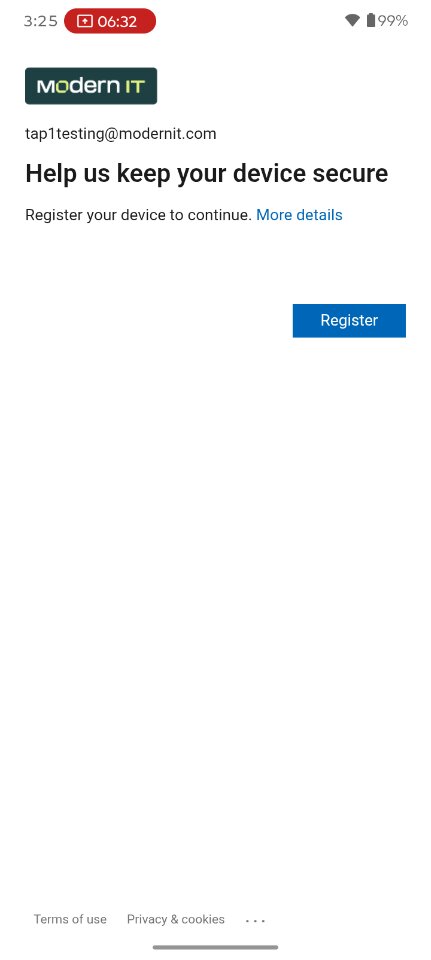
The app now walks you through securing your account. On the Let's secure your account screen, tap Continue. The app creates a passkey (this takes a few seconds), then asks to register your device. Tap Register — this is what allows passwordless sign-in to your work resources.
Finish and review
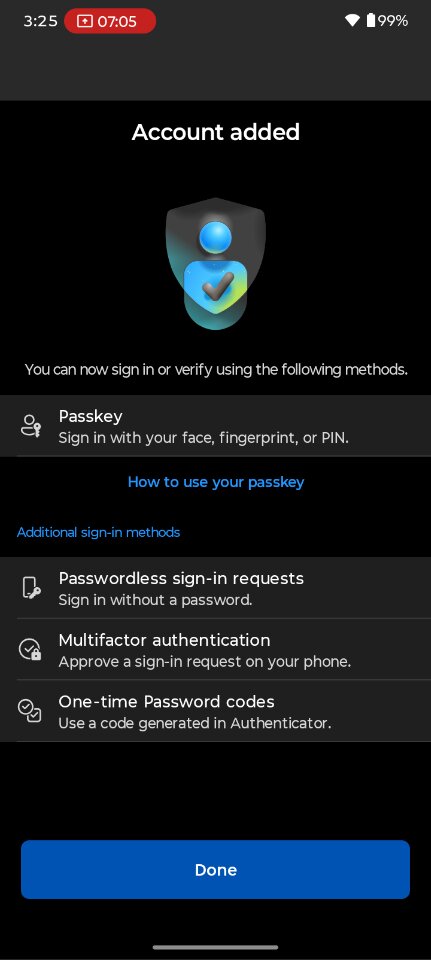
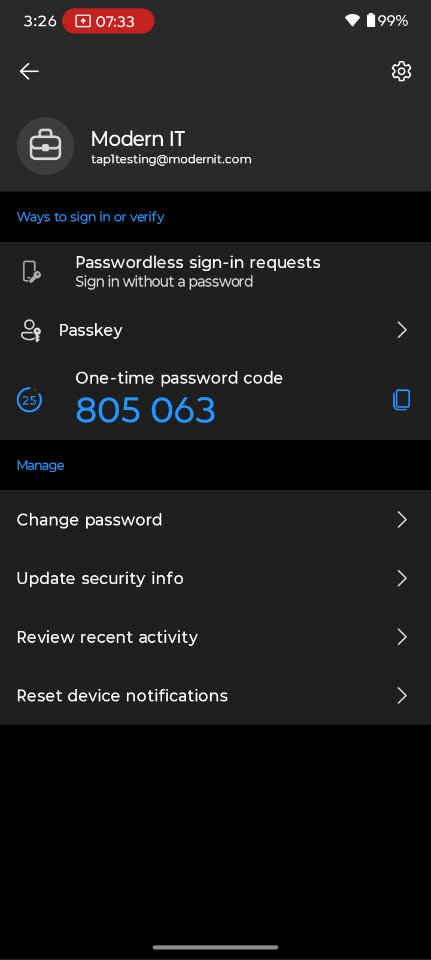
When you see Account added, tap Done. Your BestPack account now appears in the app. Tap it any time to see your sign-in methods — passkey, passwordless sign-in requests, and one-time password codes.
Confirm everything works
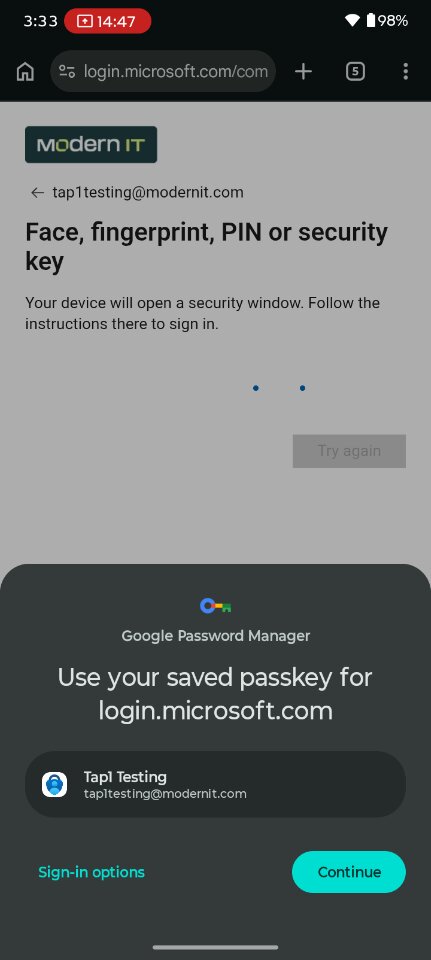
To double-check your setup, open a browser and go to mysignins.microsoft.com, then sign in with your BestPack email. When prompted, approve the sign-in on your phone using your passkey — your face, fingerprint, or PIN. Signing in with no password confirms Microsoft Authenticator is now your default sign-in method. That's it — you're passwordless.
What if something still asks for a password?
A few older programs haven't caught up to passwordless sign-in yet, so they still ask for a password instead of approving you on your phone. Your BestPack account does have one behind the scenes — even if you've never used it.
If you ever run into one of those programs, you can set up or reset that password yourself.
Set up or reset your password →Takes a couple of minutes, right from your phone — no call to IT needed.